 Focus Four
How Focus Four works, step by step
Plan your day in four priorities, then follow anything that runs over days or weeks with Tracks. This guide explains every part with a worked example, so nothing is a guess.
The idea in one minute
Focus Four has two parts that work together.
- The board (Today) holds what you are doing now. Every task sits in one of four priorities.
- Tracks hold what keeps going: a project, a purchase, a subject you check on again and again. A track gathers its tasks and the dated notes you write about it, so you never lose the thread between one update and the next.
Today and the four priorities
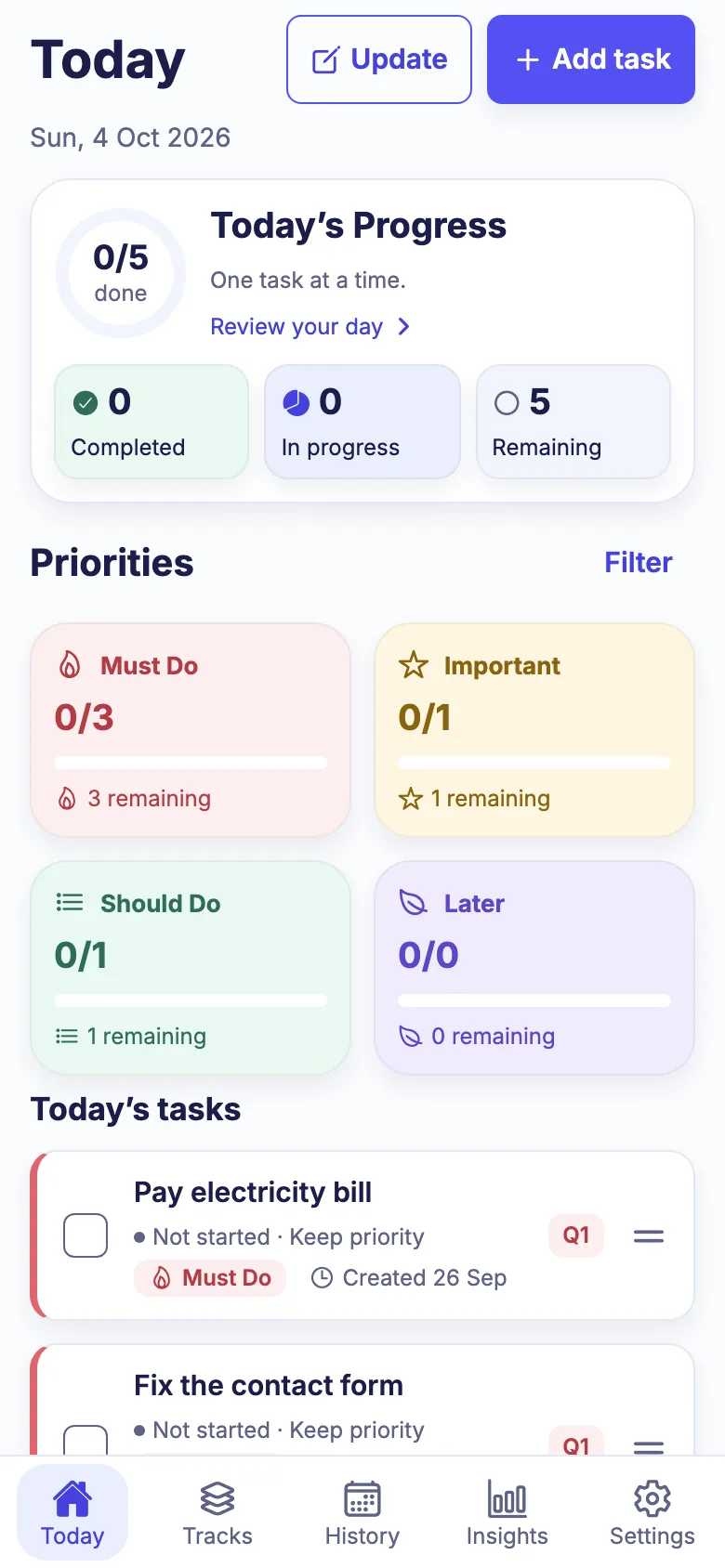
Today shows your progress, one card per priority, and your task list.
| Priority | Use it for |
|---|---|
| Q1 Must Do | What cannot slip today. |
| Q2 Important | Matters, but not urgent. |
| Q3 Should Do | Useful, and fine to do later today. |
| Q4 Later | Nice to get to when there is room. |
- Add task creates a task. Pick a priority, and a track if it belongs to one.
- Update (next to Add task) writes a note about a track or task. See Add an update.
- Tap the circle to finish a task. Tap a task to open it. Press and hold, then drag, to move it to another priority.
- Unfinished tasks carry to the next day on their own. A task shows the track it belongs to, so you can see what each task is part of.
Tracks: follow anything over time
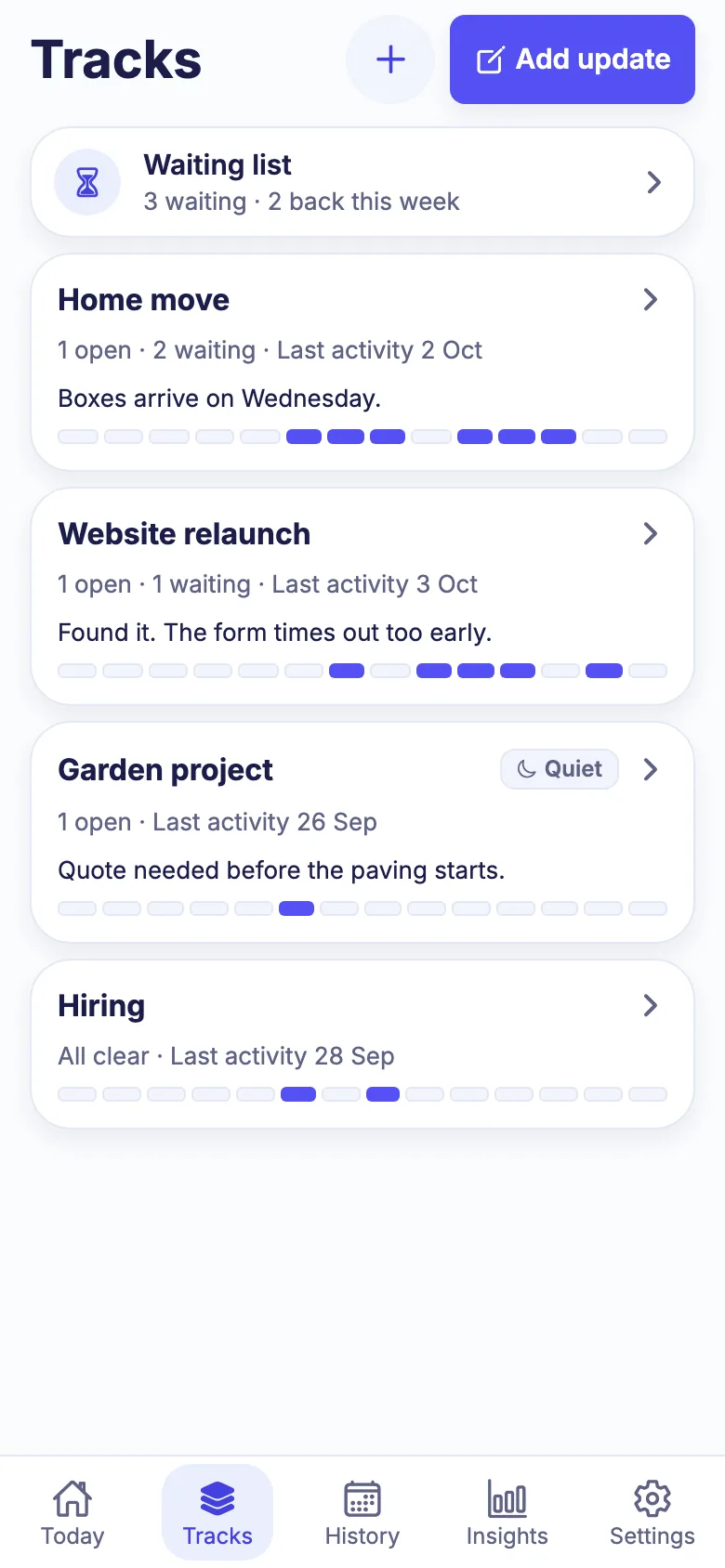
Open the Tracks tab. Each track is one card:
- The name, and how many tasks are open and waiting.
- The last activity date and the latest note, in one line.
- An activity strip of the last 14 days. A filled bar is a day when something happened.
- A Quiet badge if the track has open work and no update for 7 days. It is a nudge, not an alarm.
- "All clear" when nothing is open.
Above the cards, the Waiting list row shows how many items are parked and how many come back this week. Tap a card to open the track.
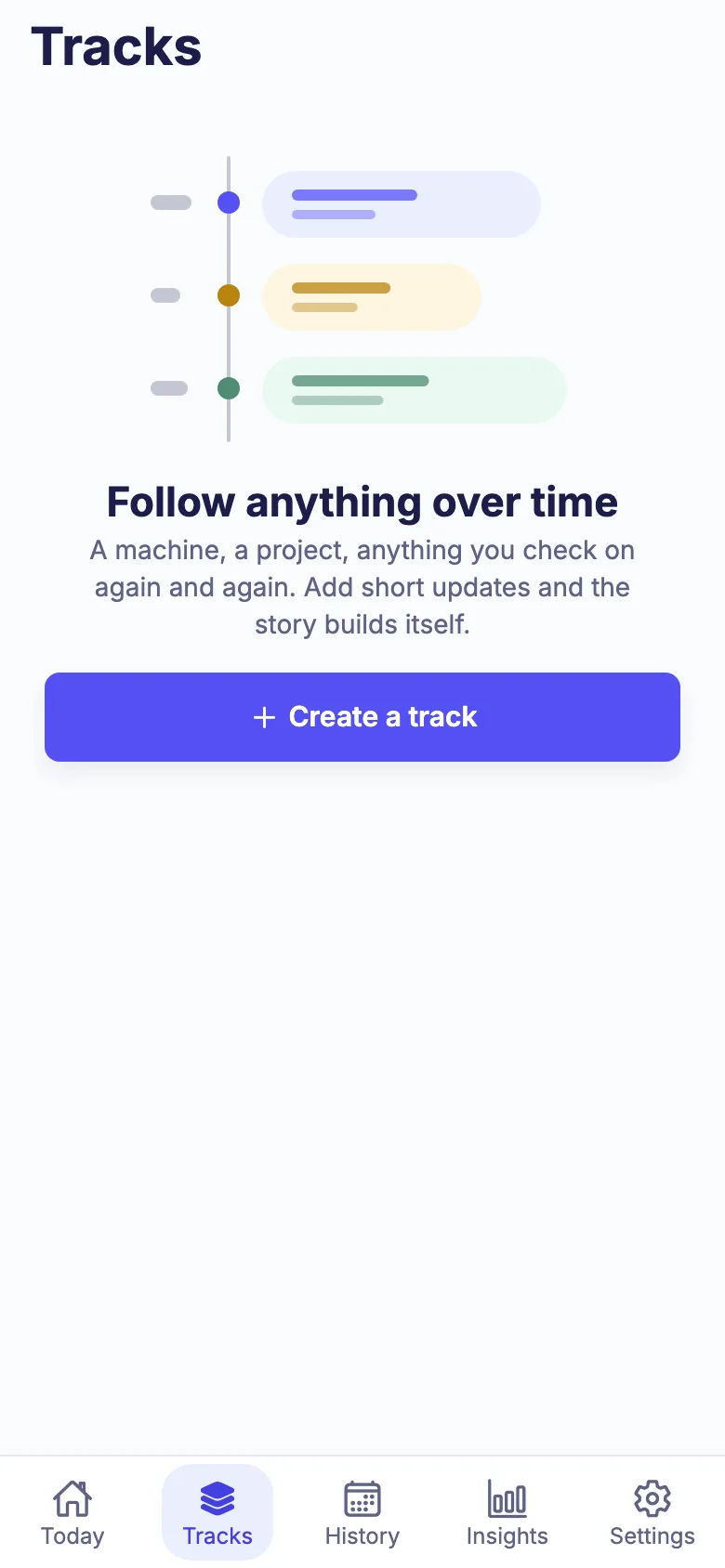
At the top, + creates a track and Add update writes a note. With no tracks yet you see a short picture and a Create a track button.
A track can be anything: a project, a home move, a hiring round, a course. Names can be up to 60 characters.
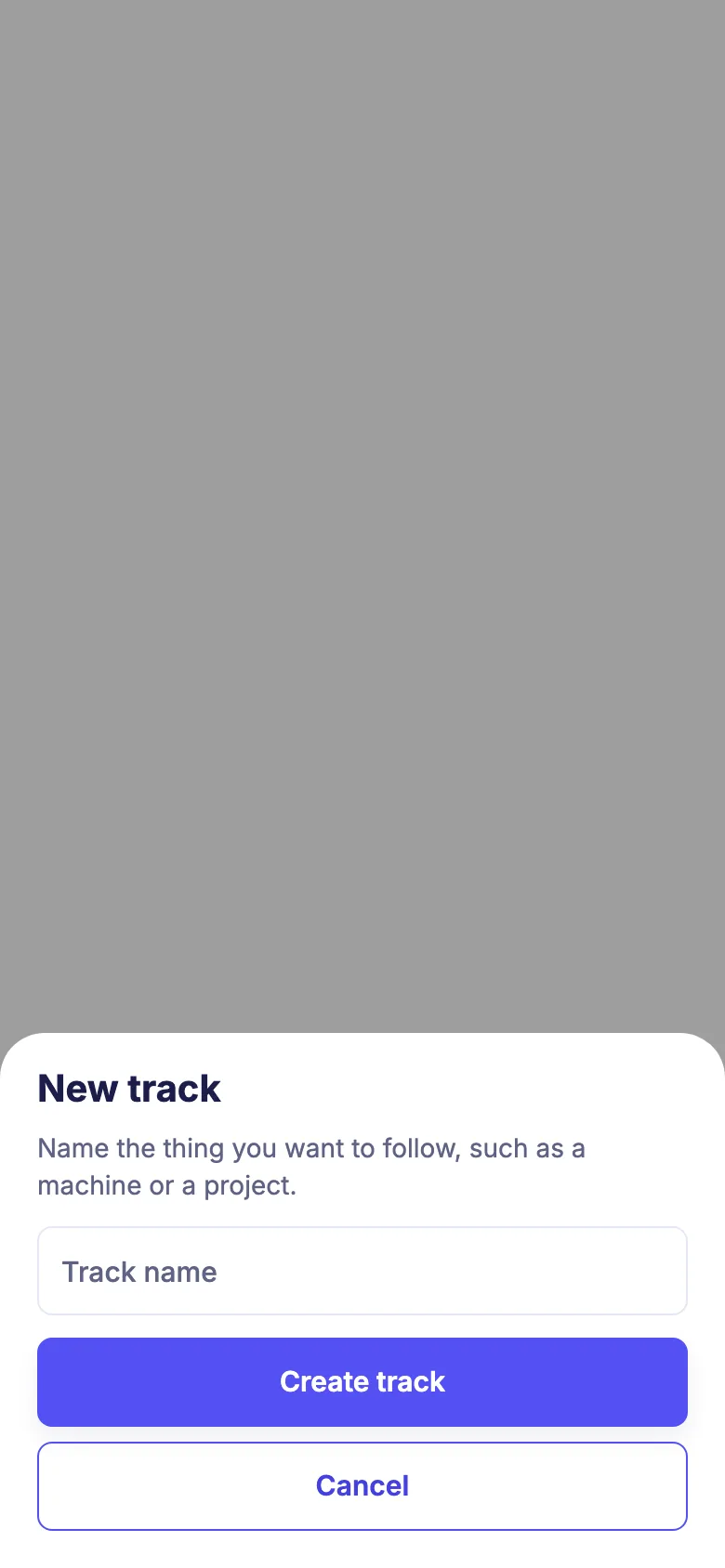
Create a track
- On the Tracks tab, tap + (or Create a track on the empty screen).
- Type a name, for example
Home move. - Tap Create track.
You can also make one while writing an update: choose New track in the Track row.
Add an update
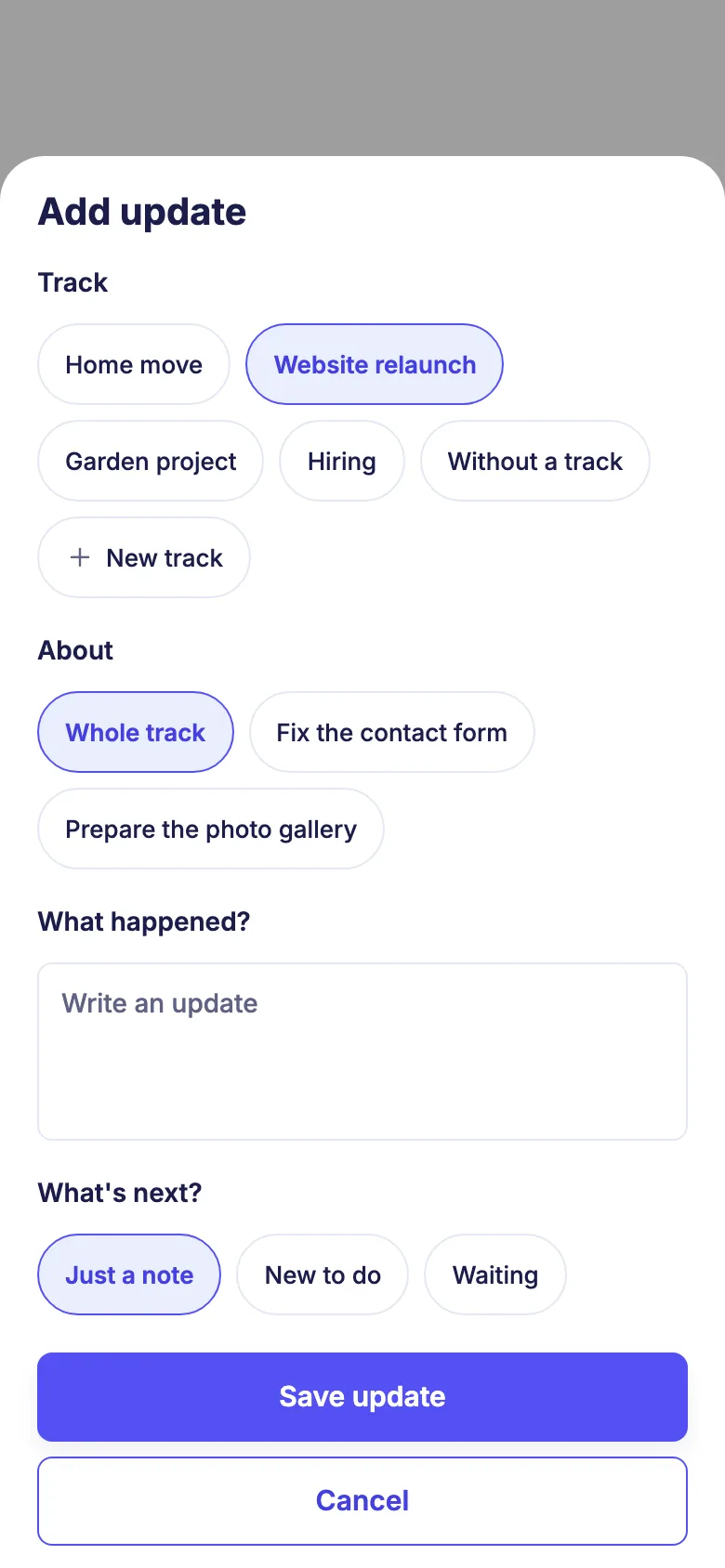
An update is a short, dated note: what happened. You can open Add update from four places: the Update button on Today, Add update on the Tracks tab, a track page, or any task page.
The sheet has four parts:
- Track. Which track the note belongs to. Without a track appears only if some of your active tasks have no track. New track makes one on the spot.
- About. What the note is about: the whole track, or one task in it. See below.
- What happened? Write the update, up to 1,000 characters.
- What's next? Choose what should follow:
- Just a note saves the note only.
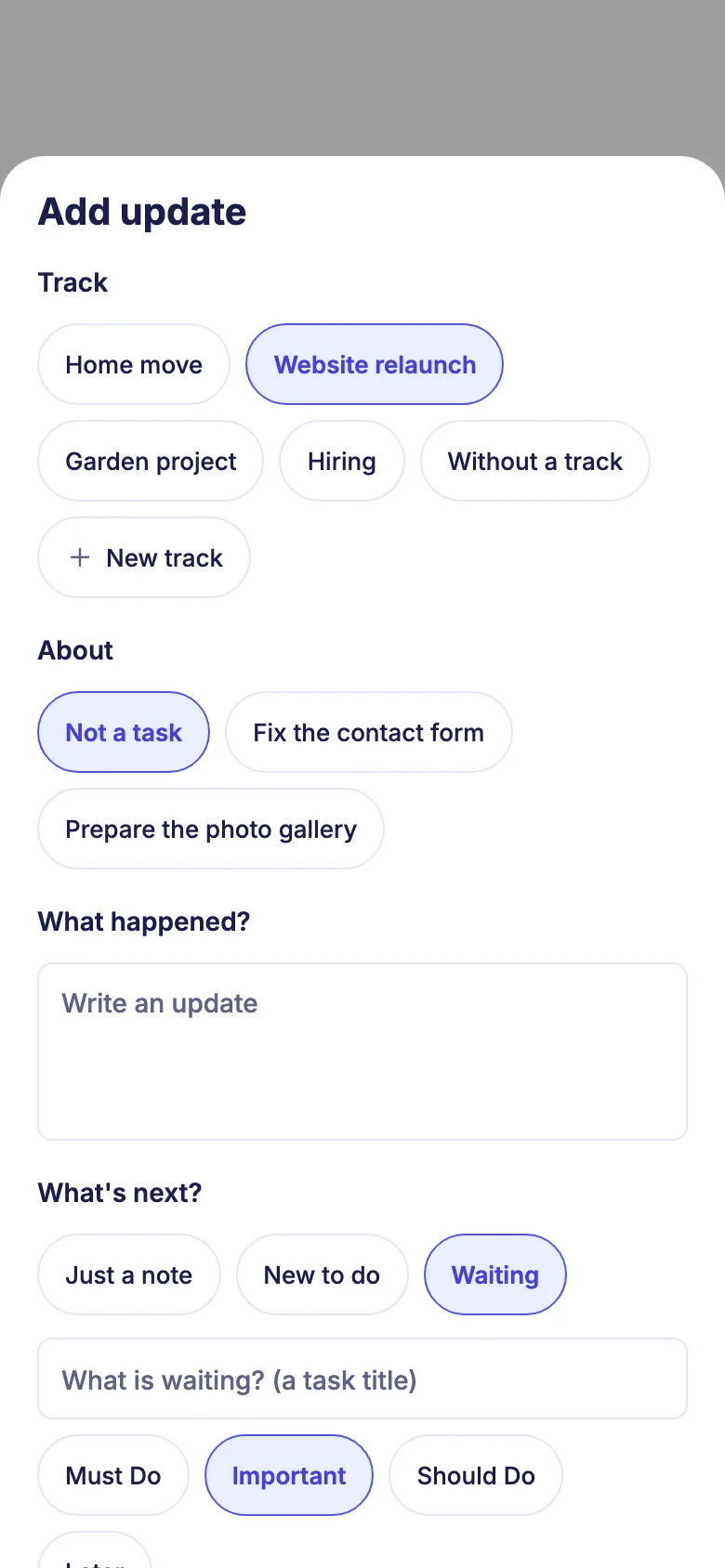
- New to do also creates a task. Give it a title and a priority.
- Waiting also creates a task and parks it on the waiting list, with an optional "waiting for" and check-back day.
Tap Save update. Everything is saved together in one step. If you leave the sheet half-written, your draft is kept.
When you pick New to do or Waiting, the new task is linked to the task the note was about. The task page shows it as "follows from", and the Flow draws the link. That is how you see that one update caused the next task.
Whole track or one task?
The About row decides where your note is attached, and so where you will find it again.
| You choose | The note belongs to | You will see it | Use it for |
|---|---|---|---|
| Whole track | The track itself, not any task | In the track's timeline and Updates list | News about the project as a whole. "Budget approved." "Moving date confirmed." |
| A task (for example "Book the removal van") | That one task, and so its track too | On that task's page, and in the track's timeline | Progress on a specific thing. "Two companies quoted." |
| Not a task | Nothing yet. The new to-do or waiting item you are creating becomes the subject | Appears when What's next is not "Just a note" | Starting a fresh task from news that is not about an existing task. |
The label says "Whole track" when you are writing a plain note and "Not a task" when you are also creating a new to-do or waiting item. The choice is the same: the note is not about an existing task.
The task page and its Update button
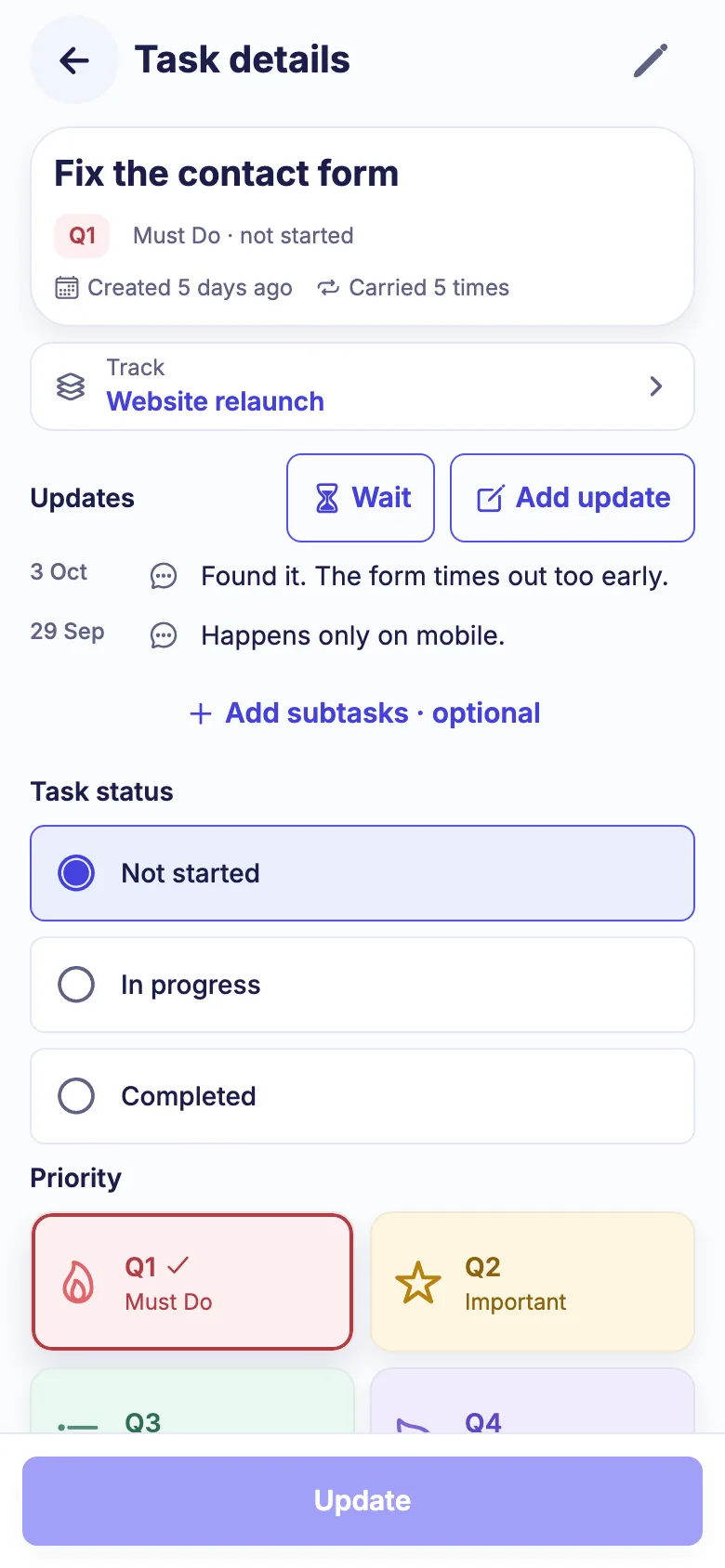
Tap any task to open its page. From top to bottom:
- The title, priority, status, when it was created and how many times it has carried over.
- Track: the track it belongs to. Tap to open the track.
- Updates: every note about this task, newest first. Wait parks the task. Add update writes a note.
- Add subtasks (optional), Task status (Not started, In progress, Completed) and Priority (Q1 to Q4).
Waiting: park it, it comes back
Some tasks cannot start yet: you are waiting for a reply, a delivery, or a date. Marking a task as waiting takes it off Today so it does not clutter the day. It does not count against your progress and is not carried or raised in priority.
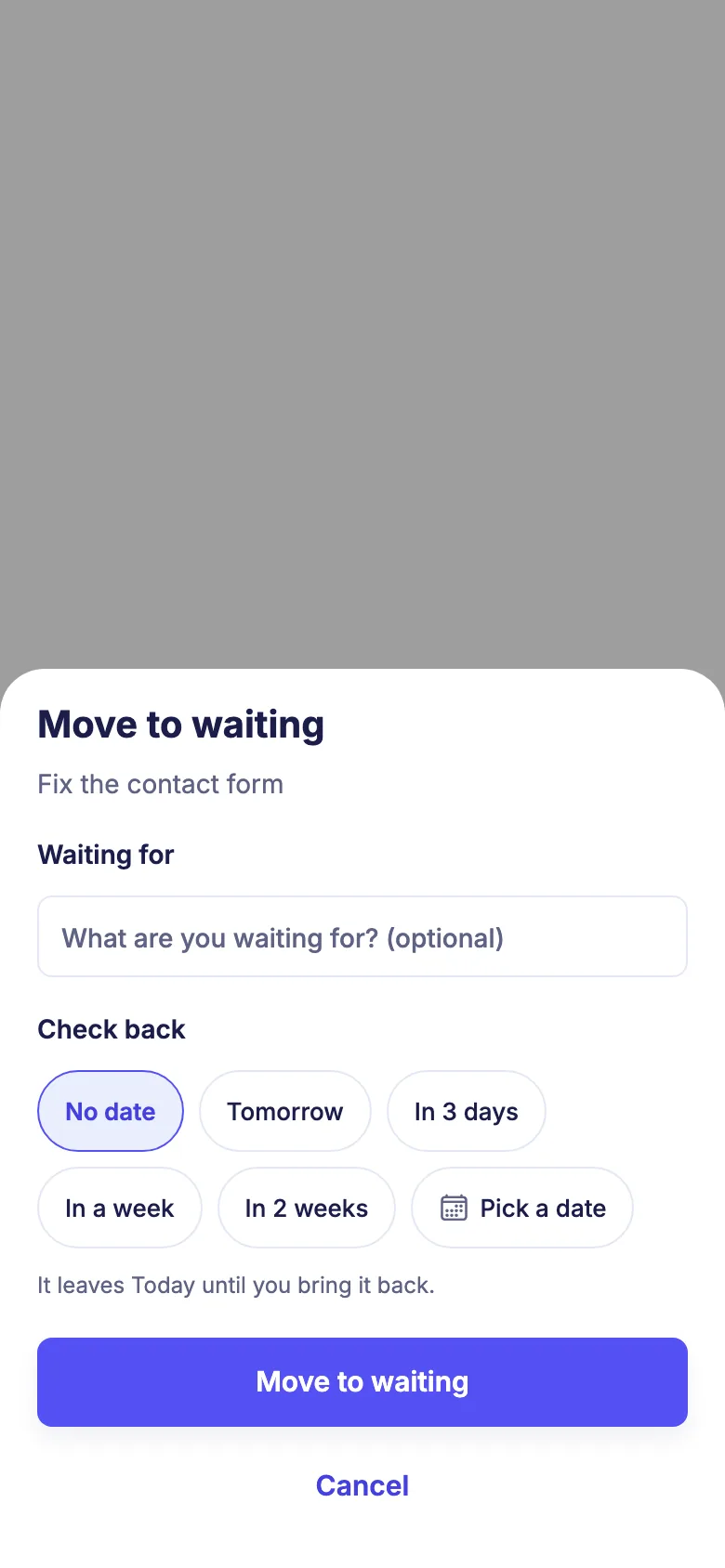
Move a task to waiting
- Open the task and tap Wait.
- Optionally write what you are waiting for, such as "Estate agent".
- Choose Check back: No date, Tomorrow, In 3 days, In a week, In 2 weeks, or Pick a date.
- Tap Move to waiting.
When it returns
On the check-back day the task comes back to Today with its priority unchanged and the label Back from waiting. With No date it stays parked until you bring it back yourself.
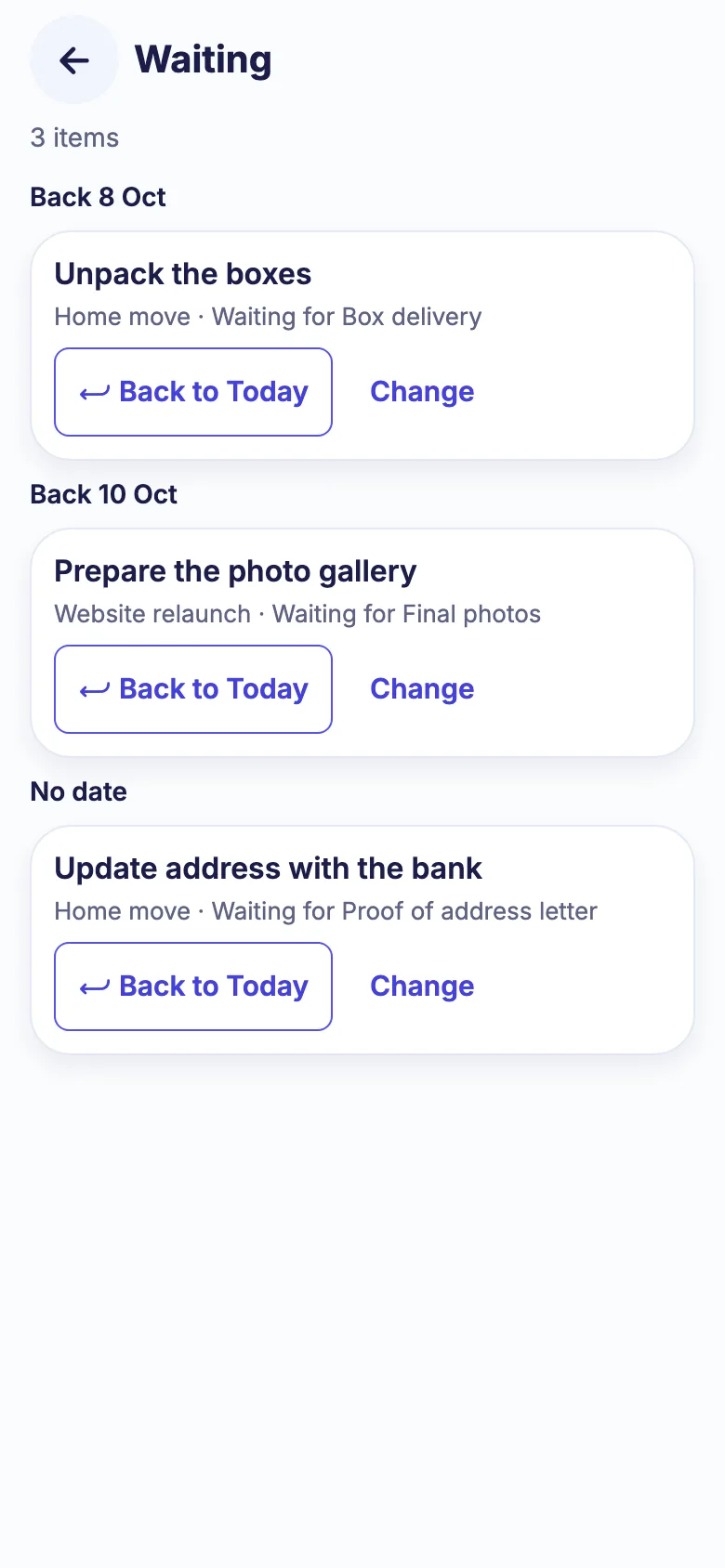
The Waiting list
On the Tracks tab, tap the Waiting list row. Items are grouped by return day ("Back 8 Oct") with a "No date" group at the end. For each item:
- Back to Today returns it immediately.
- Change edits what you are waiting for or the check-back day.
The track page: Flow, Tasks, Updates
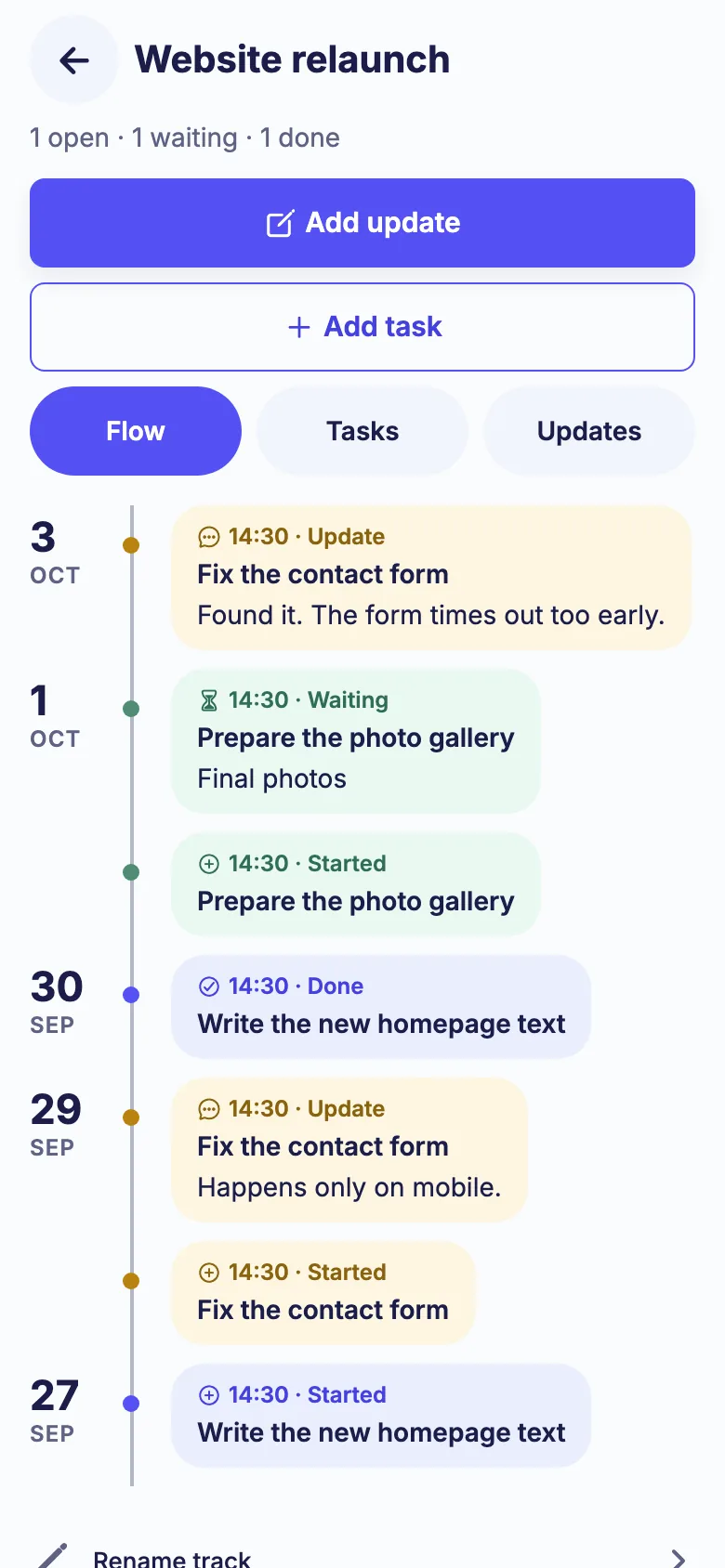
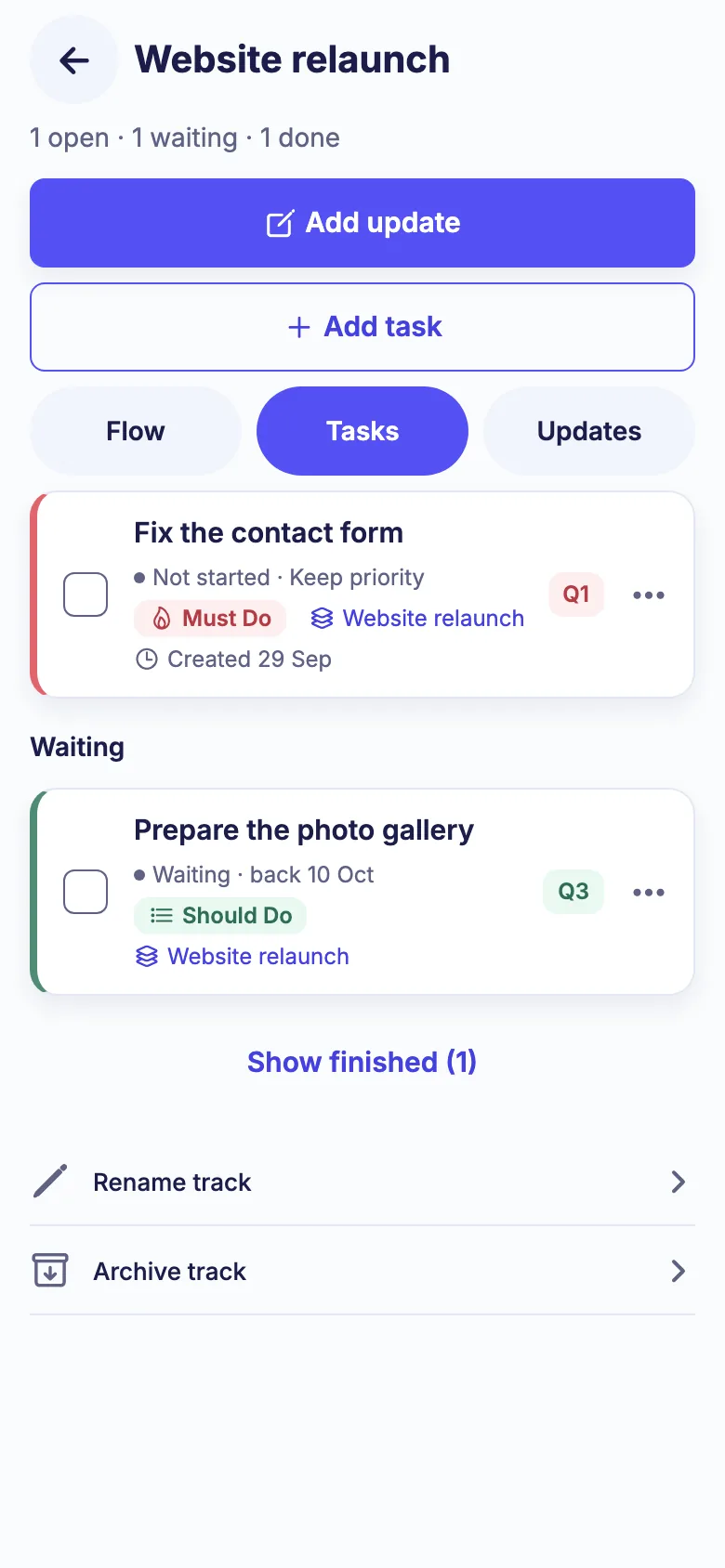
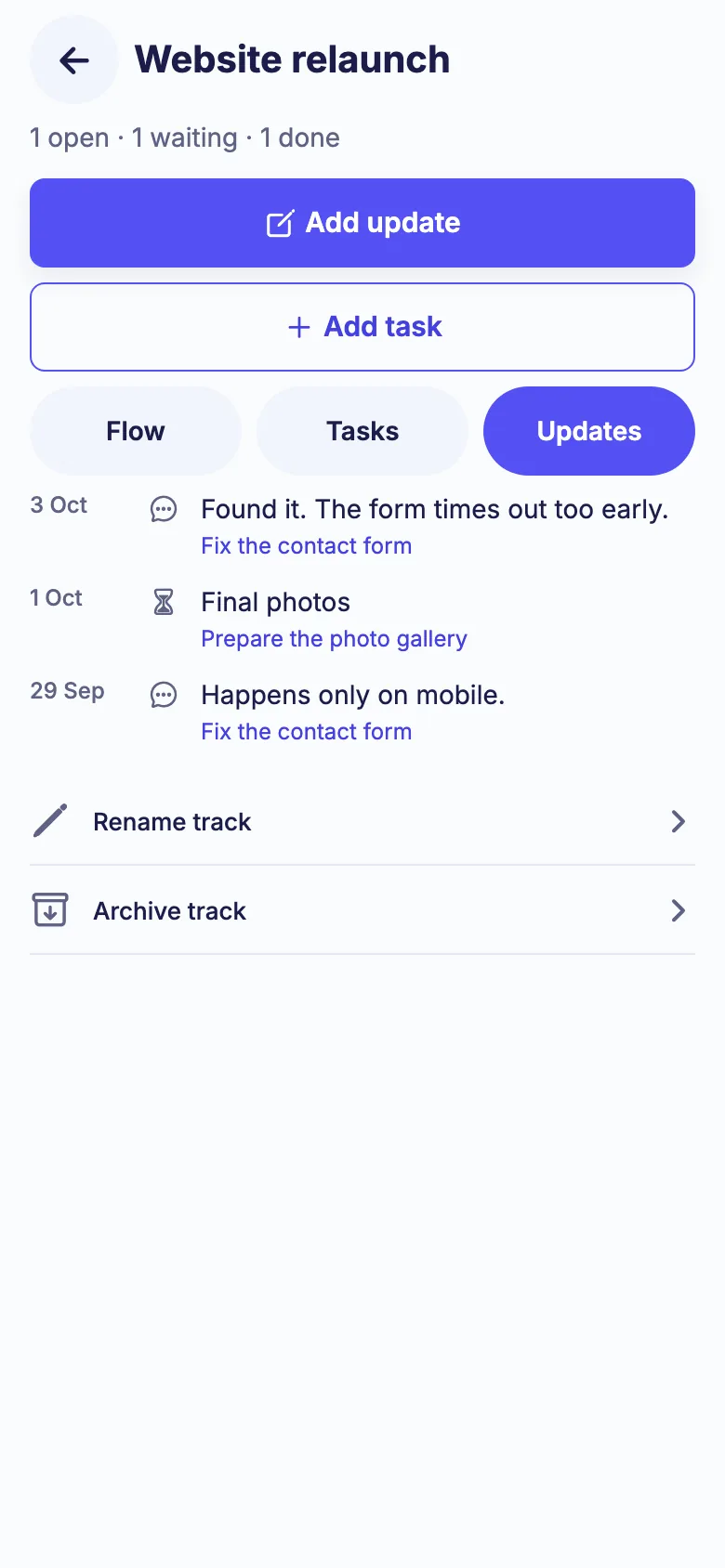
Tap a track card to open it. Under the name you see "1 open · 1 waiting · 1 done", then Add update and Add task (the new task joins this track), and three views.
Flow: the story of the track
Newest day first. Each day has its date on the left and a coloured dot on a vertical line. Soft pills show what happened: Started, Update, Waiting, Resumed and Done, with the time. Each task keeps one colour, so you can follow one task's story down the page. Days with nothing are skipped. It shows the last 30 days; tap Show earlier for more. Tap a pill to open that task.
Tasks: what is left
Open tasks, then a Waiting group. Show finished reveals completed ones. Use the circle to finish a task right here.
Updates: everything written
Every note in the track, newest first, with the task each one was about (or none, for whole-track notes). Good for reading back before a call.
Quiet tracks and the activity strip
The 14 bars on each card cover the last two weeks, oldest on the left. A filled bar means something happened that day: a note, a task started, finished or resumed.
A track is Quiet when it still has open work and nothing has been written for 7 days. Open it and add an update, finish the work, or archive it. A track with nothing open shows All clear and is never flagged.
Rename, archive and press-and-hold
- Rename track and Archive track are at the bottom of the track page.
- Archiving never deletes anything. The track moves to Archived at the bottom of the Tracks tab. Open it to read it, and tap Unarchive track to bring it back. While archived, you cannot add new work to it.
- Press and hold a track card for quick actions: Add update or Archive track. Add update opens with that track already chosen. On iPhone this is the standard action sheet. A light tap of haptic feedback follows your Completion haptics setting. With VoiceOver, the same two actions are in the actions menu on each card.
Check-back reminders
Reminders are optional and off by default. Turn them on in Settings under Check-back reminders. The app asks for notification permission only at that moment.
- One notification a day, at a time you choose, saying how many waiting items are back on Today.
- Nudge quiet tracks adds a line about tracks that have gone quiet.
- Show names in reminders is off by default, so task and track names stay off your lock screen.
Reminders are created on your phone. There is no server and no push service. Items return to Today when you open the app, with or without reminders.
Backup and your data
- Everything lives on your device. Nothing is uploaded. There is no sync and no sharing between people.
- In Settings → Data, Export backup saves a file with your tasks, tracks and updates. Restore backup reads it back. Older backups still restore.
- Backups are plain files, not encrypted. Keep them somewhere you trust.
- An account is optional. It does not unlock features and never carries your tasks.
- The full policy is in the Privacy Policy.
Questions people ask
Why is the Update button on the task page grey?
Nothing about the task has changed. Notes are saved instantly when you add them. The Update button only turns on after you change the status, priority, carry setting or subtasks.
Whole track or a task: which do I pick?
If the note names a task, pick it. If it is about the project in general, pick Whole track. See the table above.
What is the difference between a task and a track?
A task is one thing to do. A track is the ongoing thing it belongs to. A track holds many tasks and the notes about them.
Does waiting count against my day?
No. A waiting task leaves Today, is not counted in progress, and is not carried or raised. It returns with its priority unchanged.
Can I delete a track?
Tracks are archived, not deleted, so you never lose the history. Use Delete all data in Settings to clear everything.
Can someone else see or edit my tracks?
No. Focus Four has no sharing or cloud sync. Your data stays on your device unless you export a backup yourself.
Do I need an account?
No. Planning, tracks, updates and waiting all work without one.
How many characters can an update have?
Up to 1,000. Track names can be up to 60.
 VeriCode